
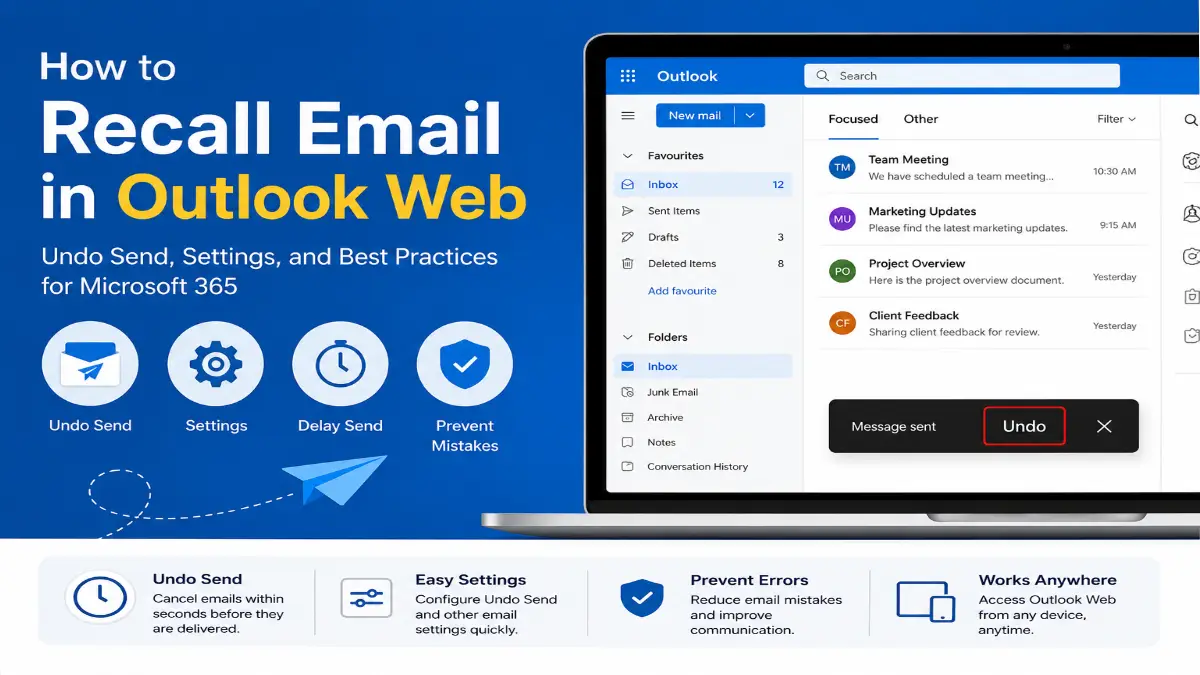

Jun 2, 2026
Sep 15, 2026
Sending an email too rapidly is somewhat everyone has experienced. Possibly you forgot an attachment, including incorrect information, or accidentally sent the message to the wrong person. This often leads users to search for ways to recall email Outlook web platforms provide.
Table of Contents
This Article Is Part of the Marketing Resource Hub
Explore more digital marketing guides, tutorials, strategies, AI marketing insights, content marketing, social media marketing, and online advertising resources inside our
Digital Marketing Resource Hub .
This recall feature operates slightly differently than in some older versions of Outlook Desktop when you are accessing an e-mail message while connected to Microsoft 365 via the internet, either by accessing Outlook Online, or by going to outlook.com, and this is something you would need to know.
If you’re looking for a complete overview of all available methods, including desktop, web, and Microsoft 365 options, check out our detailed guide on how to recall an email in Outlook.
What Does Recall Email Outlook Web Mean?
The term recall email Outlook web generally refers to stopping or reversing an email after pressing the Send button in Outlook Online.
However, Outlook Web does not feature the same recall feature which some Outlook desktop clients employ. Microsoft does provide the Undo Send function which holds onto an e-mail for a short amount of time in order to give the sender a chance to recall it.
Outlook Web primarily uses Undo Send rather than true message recall after delivery.
What Is Outlook Online?
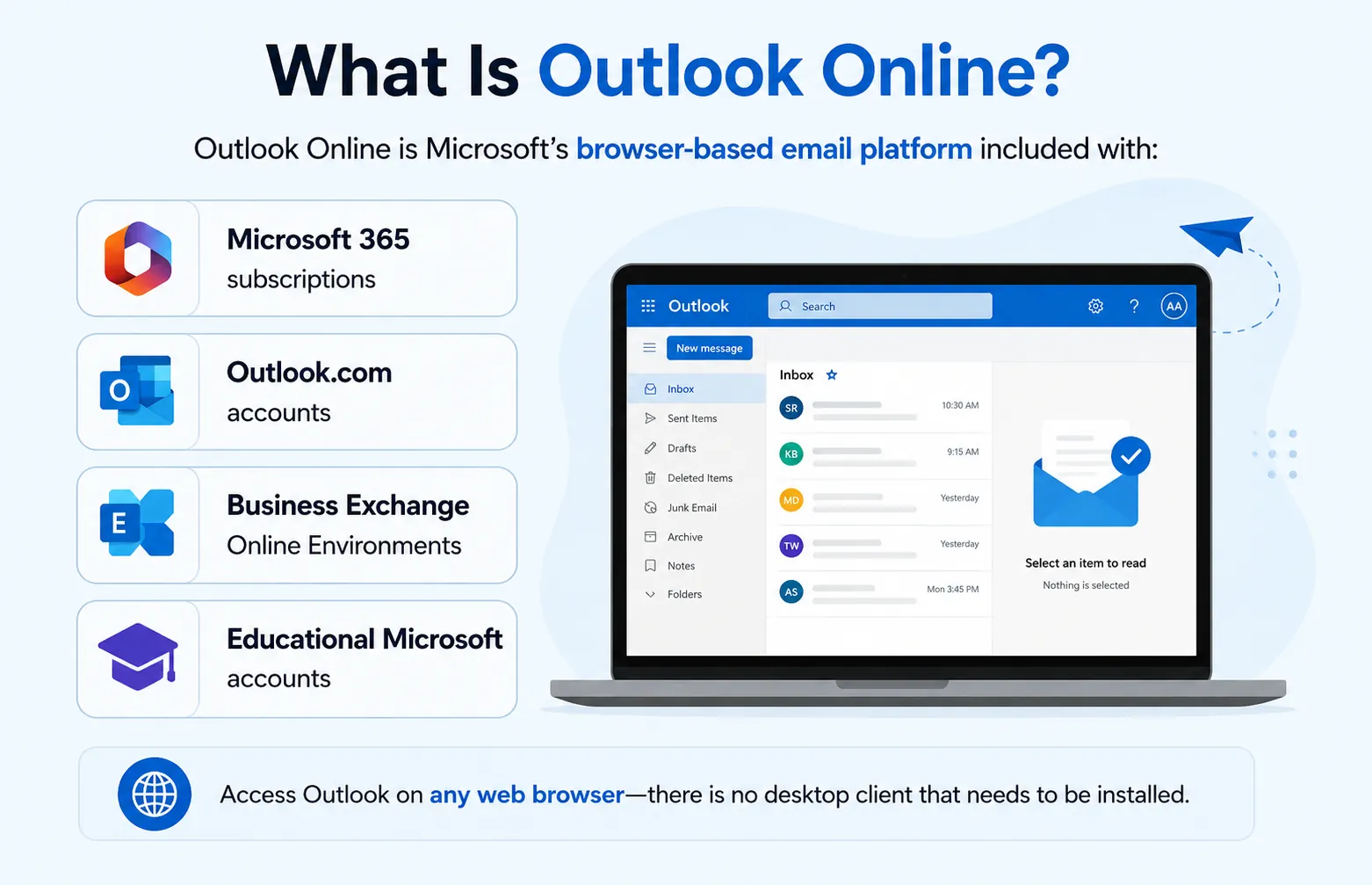
Outlook Online is Microsoft’s browser-based email platform included with:
- Microsoft 365 subscriptions
- Outlook.com accounts
- Business Exchange Online Environments
- Educational Microsoft accounts
Access Outlook on any web browser-there is no desktop client that needs to be installed.
Common Outlook Online Features
| Feature | Available in Outlook Web |
| Email Sending | Yes |
| Calendar Management | Yes |
| Contact Management | Yes |
| Shared Mailboxes | Yes |
| Undo Send | Yes |
| Traditional Recall After Delivery | Limited/No |
| Browser Access | Yes |
Outlook Online Undo Send Explained
How Outlook Online Undo Send Works
The send undo function in online view will put a hold on sending outgoing mails for certain number of seconds.
On click of ‘Send’, Outlook presents ‘Undo’ option at bottom. Selecting Undo stops the email before delivery.
Typical Delay Periods
| Delay Setting | Purpose |
| 5 Seconds | Minimal protection |
| 10 Seconds | Common setting |
| 15 Seconds | Recommendation for most users |
| 30 Seconds | Maximum correction window |
This message is put into limbo until the timeout provided.
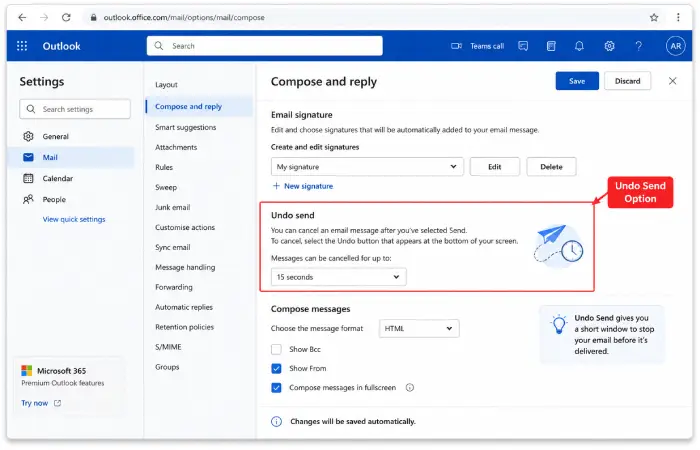
How to Enable Undo Send in Outlook Web
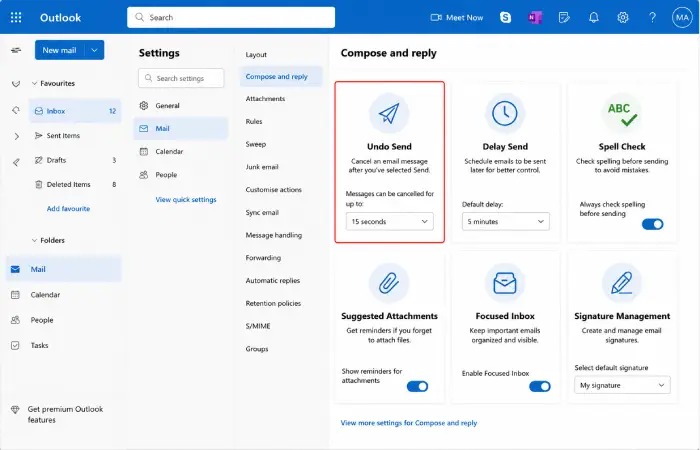
Here’s how you do it if Undo Send is off.
Workflow: Configure Outlook Browser Email Settings
Step 1
Open Outlook Online and sign in.
Step 2
Click the Settings icon in the upper right.
Step 3
Click View all Outlook settings.
Step 4
Navigate to:
Mail → Compose and Reply
Step 5
Locate the Undo Send section.
Step 6
Select any period from 5-30 seconds.
Step 7
Save your settings.
Once configured, future emails will include an Undo option after sending.
Recall Email Office 365 vs Outlook Web
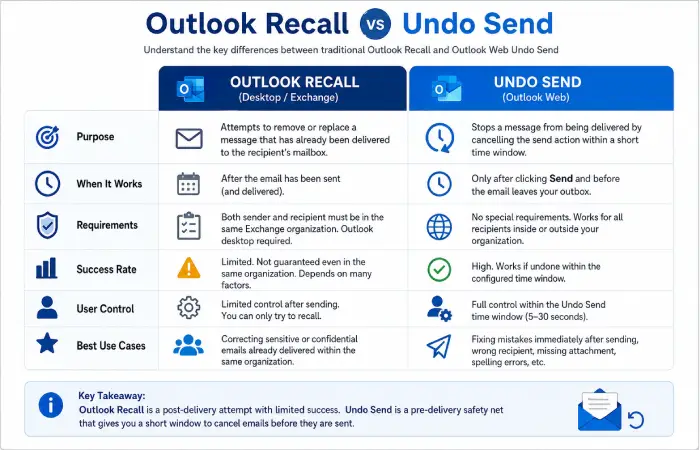
Many users confuse recall email office 365 capabilities with Outlook Online functionality.
| Feature | Outlook Desktop | Outlook Web |
| Traditional Message Recall | Sometimes Available | Generally No |
| Undo Send | Limited | Yes |
| Exchange Environment Support | Yes | Yes |
| Works After Delivery | Sometimes | No |
| Browser Based | No | Yes |
| Easy Configuration | Moderate | Easy |
Keep in mind that Outlook Web uses the Undo Send feature, which differs from the traditional method used to recall an email in Outlook desktop.
Key Difference
Traditional recall attempts to remove a message already delivered to another mailbox.
Undo Send prevents delivery before the message leaves your account.
Does Outlook Web Email Recall Always Work?
Realistic Expectations
This is where many users become confused.
A true outlook web email recall mechanism does not usually exist after delivery. Once the recipient receives the email, Outlook Online cannot reliably remove it.
Users should understand:
Undo Send works before delivery.
Email edits are possible during the delay period.
Delivery can be cancelled within the configured time window.
Delivered emails generally cannot be retrieved.
External recipients cannot be affected by recall attempts.
Common Situations Where Undo Send Helps
The feature is particularly useful when:
- You forget an attachment.
- A spelling mistake is noticed immediately.
- Incorrect recipients were selected.
- Sensitive information was included accidentally.
- You sent the wrong version of a document.
Example
A marketing manager sends a campaign update but notices the attached file contains outdated statistics.
Using Undo Send within 15 seconds allows correction before delivery.
Outlook Browser Email Settings That Improve Email Accuracy
Besides Undo Send, several outlook browser email settings can help reduce mistakes.
Recommended Settings
Delay Send
Provides additional review time before messages leave your inbox.
Spell Check
Identifies common grammar and spelling issues.
Suggested Attachments
Reminds users when attachment-related keywords appear.
Focused Inbox
Improves organisation and visibility.
Signature Management
Ensure the branding and contact information is the same across all platforms.
Pros and Cons
Pros
- Easy to configure.
- Available directly in browser.
- Helps prevent common mistakes.
- No additional software required.
- Works across devices.
Cons
- Not a true post-delivery recall.
- Limited correction window.
- Cannot retrieve emails already delivered.
- Depends on user action within seconds.
Who Should Use Outlook Web Undo Send?
Ideal For
- Business professionals
- Students
- Remote workers
- Marketing teams
- Customer support staff
- Small business owners
May Not Be Sufficient For
- Users requiring advanced Exchange recall controls.
- Organisations need strict post-delivery message management.
- Compliance-heavy industries with specialized email policies.
Alternatives to Outlook Web Recall
If your organisation requires stronger email control, consider:
| Option | Benefit |
| Outlook Desktop | More advanced Exchange features |
| Exchange Online Policies | Administrative controls |
| Delayed Delivery Rules | Longer review windows |
| Approval Workflows | Reduces accidental sending |
| Shared Mailbox Review Processes | Additional oversight |
Best Practices Before Sending Important Emails
- Review recipients carefully.
- Verify attachments.
- Check links and URLs.
- Use a 15–30 second Undo Send delay.
- Proofread before clicking Send.
- Avoid sending sensitive information hastily.
- Confirm document versions.
These habits often prevent problems more effectively than relying on recall features.
FAQs
Can I recall an email Outlook web after I have sent?
No, the Outlook Web supports Undo Send, which applies before it gets to the recipient, not after.
Is Outlook Online Undo Send the same as Outlook recall?
No. The classic recall retrieves a message after it has been delivered under certain circumstances. Outlook Online cancels the sending after sending, but before delivery.
How long does Outlook Online Undo Send?
The range of the duration for undo sending email feature in Outlook online application varies between 5 seconds to 30 seconds.
Does Outlook recall email Office 365 work with external recipients?
A recall email function has significant limitations for external recipients. About Outlook Web, Undo Send does not affect emails after delivery.
Where do I find my Outlook browser email settings?
To locate these you would go to:
Settings – View All Outlook Settings – Mail – Compose and Reply
Conclusion
When people look up recall email outlook web they are usually trying to find out how to ‘undo’ a sent email. With the Outlook Online solution it will almost certainly be through the Undo Send feature, not traditional message recall. By using delay and good email practices you can minimize sending mistakes and effectively get the chance to stop an email being delivered.
For almost all Outlook Online users the best way to avoid sending mistakes is the use of the Undo Send feature combined with diligent proof-reading.