



If you are looking for undo send in Outlook then you will know that rush of feeling just after sending an email.
Table of Contents
This Article Is Part of the Marketing Resource Hub
Explore more digital marketing guides, tutorials, strategies, AI marketing insights, content marketing, social media marketing, and online advertising resources inside our
Digital Marketing Resource Hub .
Perhaps you attached the incorrect file, sent the email to the wrong person, or realized a terribly embarrassing mistake with a grinning grin too late.
Fortunately, Outlook has recently adapted to the innovations with an Undo Send feature that provides users a window of time to real-time stop sent-email.
In difference to email recall, which efforts to bring back the message after it has already been sent, Undo Send stops the email before it leaves your letterbox.
And this guide, you will learn how Undo Send the whole thing, what to set it up, when it can be fruitful, and how it stacks against other safety topographies in 2026.
What Is Undo Send in Outlook?
Undo Send. This is a feature that holds an email for a limited period of time following the click of Send.
During that delay, you see an Undo option in Outlook to cancel delivery.
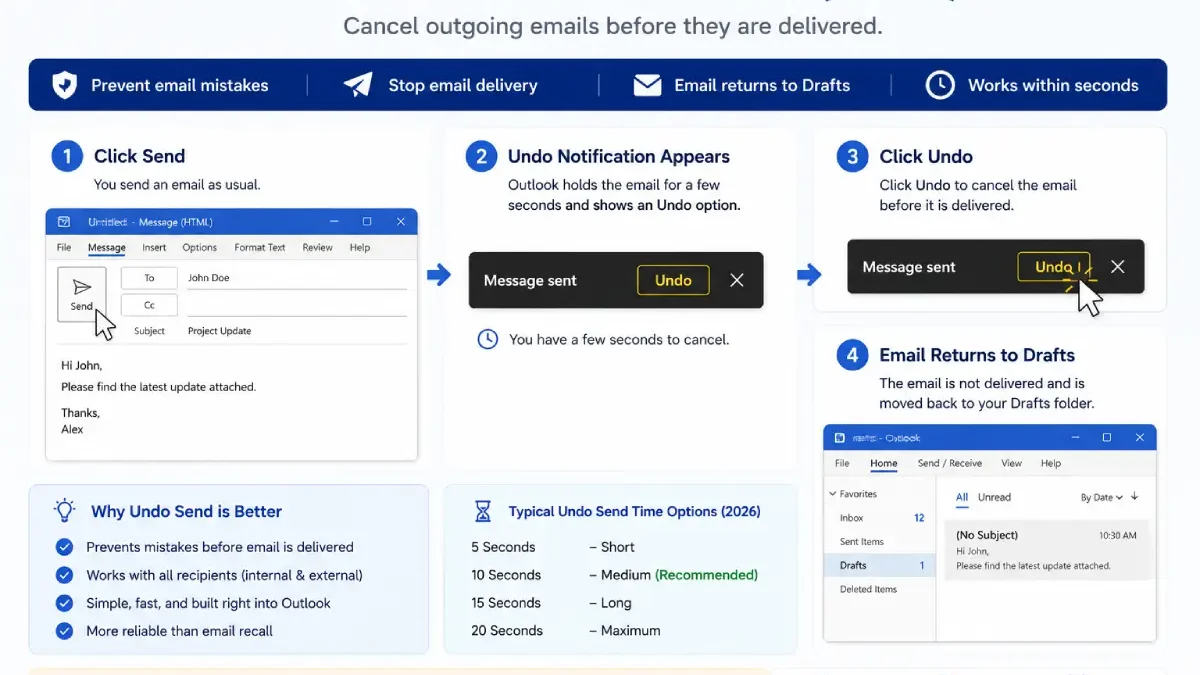
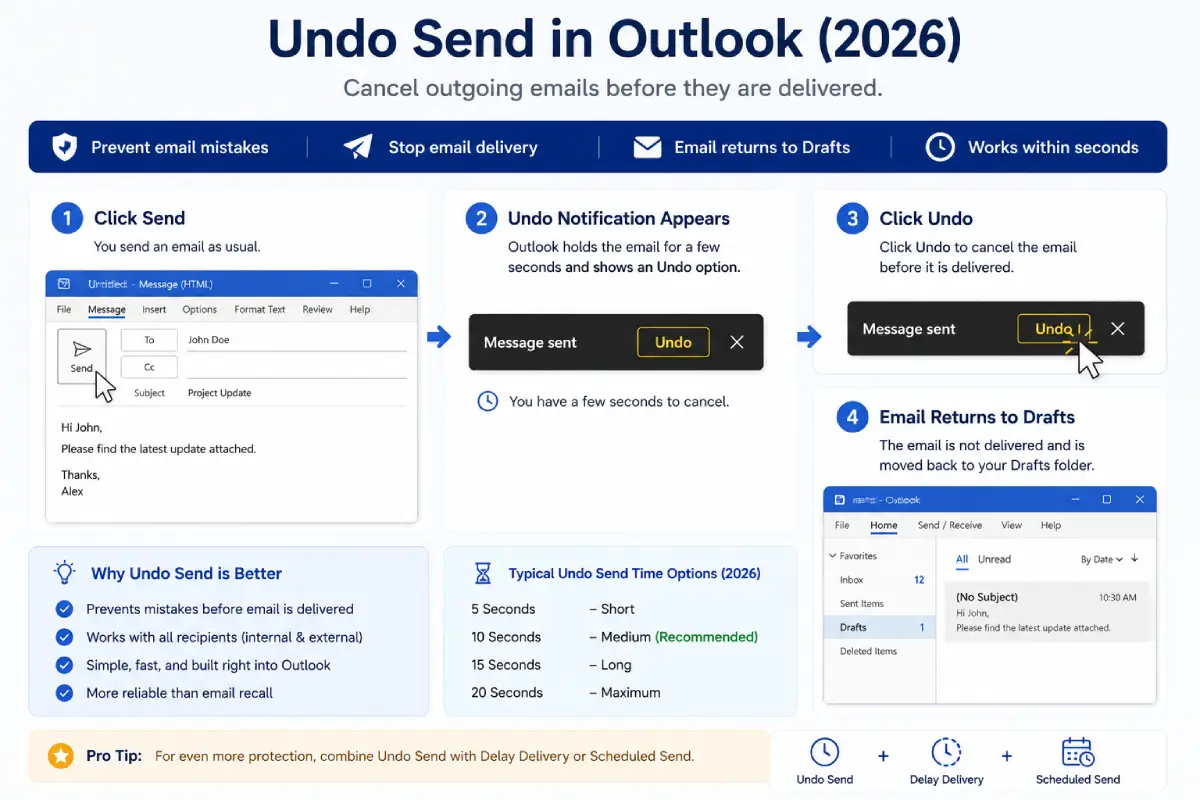
How It Works
- Click Send.
- Outlook holds the email temporarily.
- Undo notification appears.
- Click Undo to stop delivery.
- Email returns to Drafts.
Because the message hasn’t been delivered yet, Undo Send is much more reliable than traditional email recall.
Undo Send vs Outlook Recall
Many users confuse these features.
Feature Comparison
| Feature | Undo Send | Outlook Recall |
| Works Before Delivery | Yes | No |
| Works After Delivery | No | Yes |
| Depends on Recipient Actions | No | Yes |
| Works with External Recipients | Yes | Limited |
| Reliability | Very High | Moderate |
| Recommended in 2026 | Yes | Limited Use |
Key Takeaway
Undo Send prevents mistakes.
Recall attempts to fix mistakes after they happen.
How to Enable Undo Send in Outlook
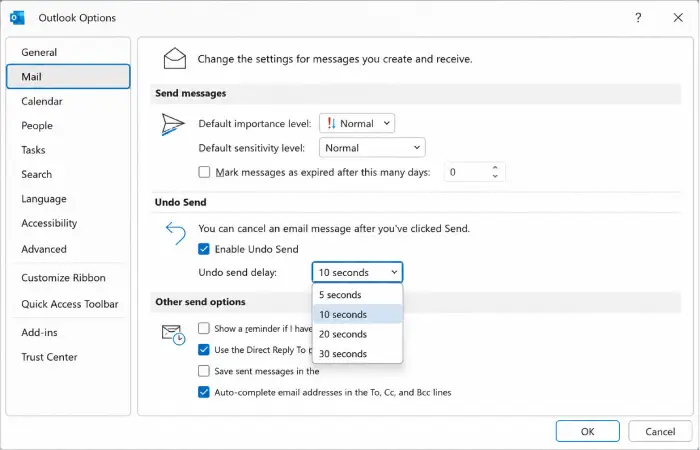
The setup process varies slightly depending on your Outlook version.
New Outlook for Windows
- Open Outlook.
- Select Settings.
- Click Mail.
- Choose Compose and Reply.
- Locate Undo Send.
- Select delay time:
- 5 Seconds
- 10 Seconds
- 15 Seconds
- 20 Seconds
- Save settings.
Outlook for Mac
- Open Outlook.
- Navigate to Settings.
- Select Compose.
- Enable Undo Send.
- Choose preferred delay period.
Outlook Undo Send Time Limits
Unlike email recall, Undo Send has a fixed cancellation window.
Available Delay Settings
| Delay Option | Time Available |
| Short | 5 Seconds |
| Medium | 10 Seconds |
| Long | 15 Seconds |
| Maximum | 20 Seconds |
Most users choose 10–20 seconds for maximum protection.
Comparison Table: Outlook Email Protection Methods
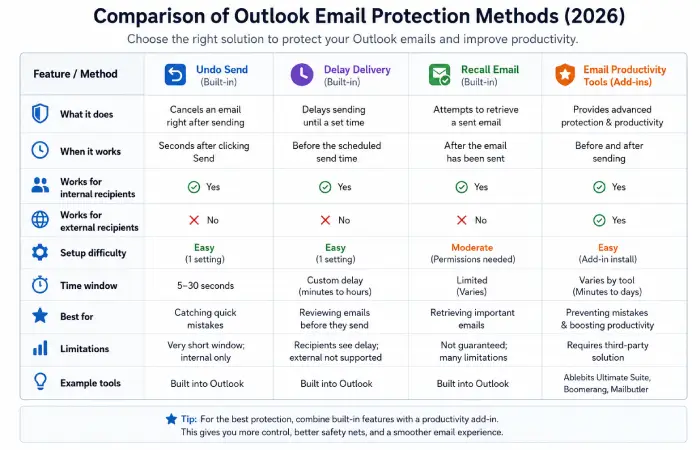
| Method | Success Rate | Best For |
| Undo Send | 98% | Everyday Users |
| Delay Delivery | 95% | Professionals |
| Scheduled Send | 94% | Teams |
| Email Recall | 50% | Internal Organizations |
| Correction Email | 100% | Already Delivered Messages |
Key Insight
Prevention-based features consistently outperform recall-based solutions.
Outlook Send Delay Setup
For users who want more than 20 seconds, Outlook offers Delay Delivery.
Benefits
- Additional review time
- Better protection against mistakes
- Supports business workflows
- Works with external recipients
Typical Delay Settings
| User Type | Recommended Delay |
| Individual Users | 1 Minute |
| Small Business | 2 Minutes |
| Executives | 5 Minutes |
| Compliance Teams | 10 Minutes |
Many organizations automatically delay outgoing mail as a safety measure.
Real-World Use Cases
Missing Attachment
Undo Send allows users to stop delivery and attach the correct file.
Wrong Recipient
Cancel the message before it leaves the Outbox.
Last-Minute Changes
Make edits without sending follow-up correction emails.
Sensitive Information
Prevent accidental disclosures before delivery occurs.
Best Email Productivity Tools for Outlook Users
Several tools complement Outlook’s built-in protection features.
Mailbutler
Features:
- Send Later
- Email Tracking
- Templates
Boomerang
Features:
- Scheduling
- Follow-Up Reminders
- Inbox Productivity
Superhuman
Features:
- Fast Workflow
- Advanced Undo Features
- Productivity Automation
Troubleshooting Outlook Undo Send
Undo Option Not Appearing
Possible causes:
- Feature disabled
- Older Outlook version
- Outdated application
Email Sent Immediately
Verify:
- Undo Send enabled
- Delay period configured
- Outlook updated
Can’t Find Setting
Check whether you’re using:
- New Outlook
- Outlook Web
- Outlook for Mac
Settings locations may differ slightly.
Undo Period Too Short
Increase the delay window to 20 seconds for additional protection.
Best Practices for Email Safety
Enable Undo Send
This should be the first setting every Outlook user activates.
Use Delay Delivery
Add a one- to five-minute safety buffer.
Double-Check Recipients
Autocomplete remains a common source of email mistakes.
Review Attachments
Many errors involve missing or incorrect files.
Use Scheduling Features
Important emails benefit from additional review time.
Outlook Email Safety Workflow (2026)
| Layer | Protection Level |
| Undo Send | Excellent |
| Delay Delivery | Excellent |
| Scheduled Send | Very High |
| Productivity Tools | Very High |
| Traditional Recall | Moderate |
Organizations combining these features experience significantly fewer email errors.
Conclusion
The Undo Send in Outlook feature is one of the most valuable email safety tools available in 2026.
Unlike Outlook Recall, which depends on recipient actions and technical requirements, Undo Send prevents messages from leaving your mailbox until you’re confident they’re ready.
For maximum protection, combine Undo Send with Delay Delivery, Scheduled Send, and productivity tools. This proactive approach dramatically reduces email mistakes and creates a more reliable communication workflow.
<div class=”mob-topic-cluster”>
<h3>How to Recall Email in Outlook Topics</h3>
<div class=”mob-topic-grid”>
<a class=”pillar-link” href=”https://www.marketoblog.com/how-to-recall-email-in-outlook/”>
How to Recall Email in Outlook
</a>
<a href=”https://www.marketoblog.com/how-to-recall-email-in-outlook/desktop/”>
Recall Email in Outlook Desktop
</a>
<a href=”https://www.marketoblog.com/how-to-recall-email-in-outlook/recall-email-outlook-web/”>
Recall Email Outlook Web
</a>
<a href=”https://www.marketoblog.com/how-to-recall-email-in-outlook/outlook-recall-failed/”>
Outlook Recall Failed
</a>
<a href=”https://www.marketoblog.com/how-to-recall-email-in-outlook/undo-send-in-outlook/”>
Undo Send in Outlook
</a>
<a href=”https://www.marketoblog.com/how-to-recall-email-in-outlook/outlook-vs-gmail-recall/”>
Outlook vs Gmail Recall
</a>
<a href=”https://www.marketoblog.com/how-to-recall-email-in-outlook/outlook-recall-time-limit/”>
Outlook Recall Time Limit
</a>
<a href=”https://www.marketoblog.com/how-to-recall-email-in-outlook/recall-email-outlook-mac/”>
Recall Email Outlook Mac
</a>
<a href=”https://www.marketoblog.com/how-to-recall-email-in-outlook/outlook-email-recall-alternatives/”>
Outlook Email Recall Alternatives
</a>
</div>
</div>