

Jun 3, 2026
Sep 15, 2026
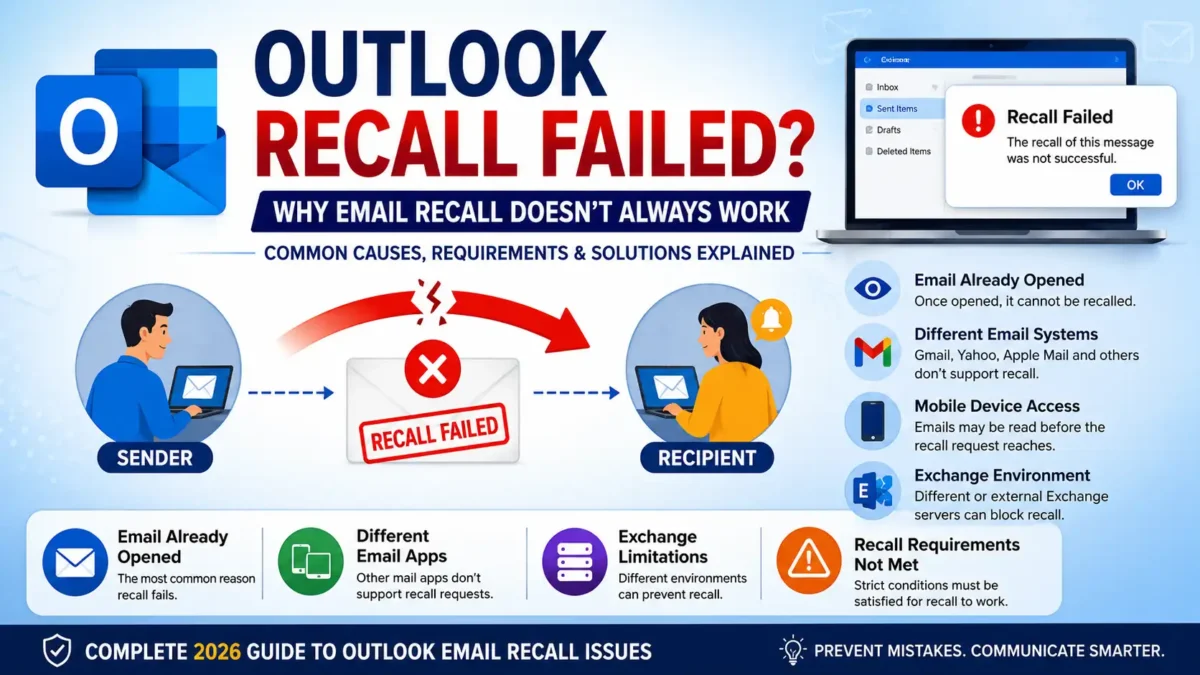
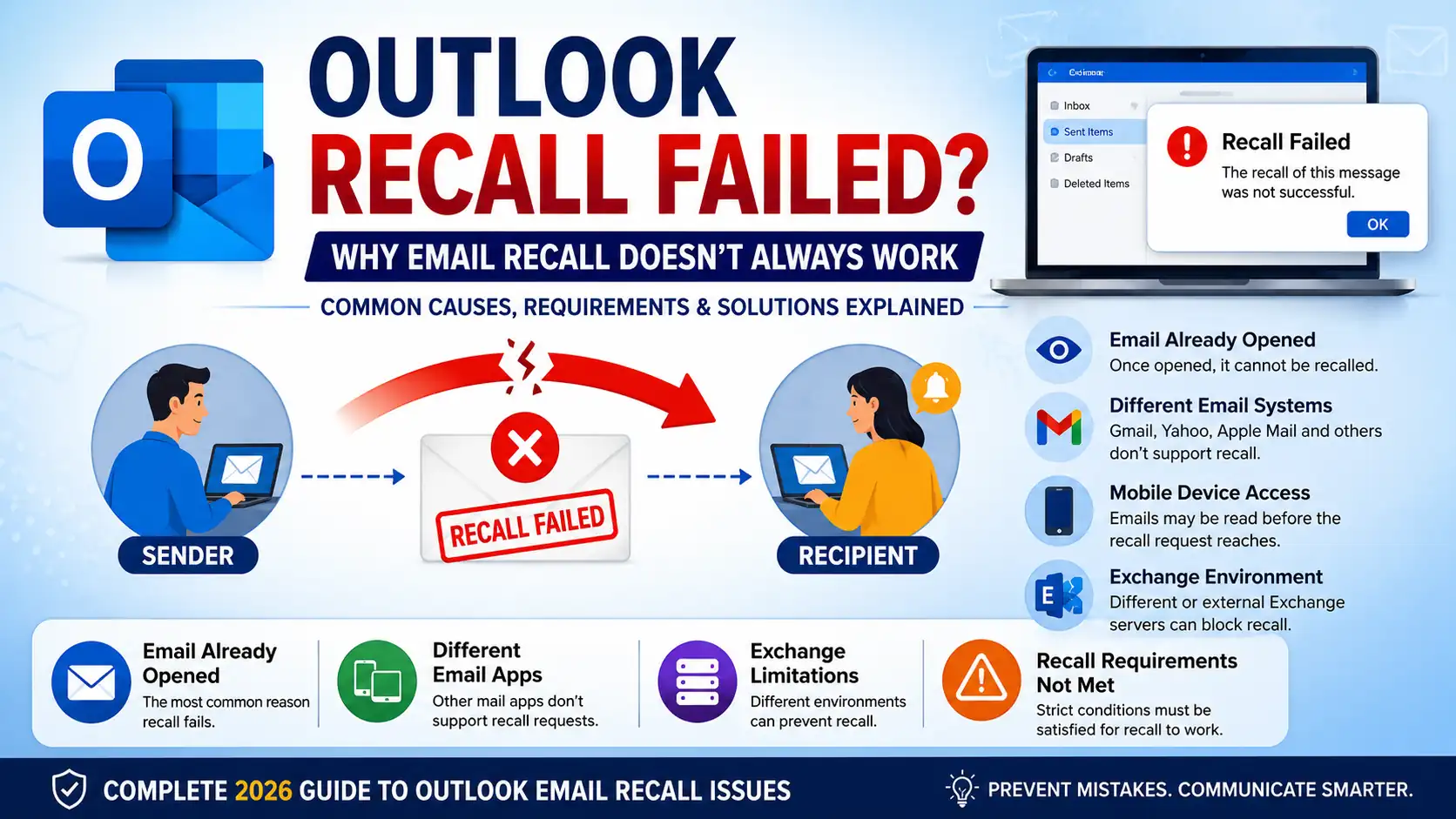
Have you ever sent an email and instantly asked if you could take it back? Microsoft Outlook offers a message recall feature considered to help users reclaim or restore emails after sending them. However, many users confront situations where the Outlook recall failed notification appears instead.
Table of Contents
This Article Is Part of the Marketing Resource Hub
Explore more digital marketing guides, tutorials, strategies, AI marketing insights, content marketing, social media marketing, and online advertising resources inside our
Digital Marketing Resource Hub .
Understanding why email recall does not always work can save time, check confusion, and help you choose better changes when mistakes happen. In this guide, we explain how Outlook recall works, its limits, common failure causes, and virtual solutions.
What Does “Outlook Recall Failed” Mean?
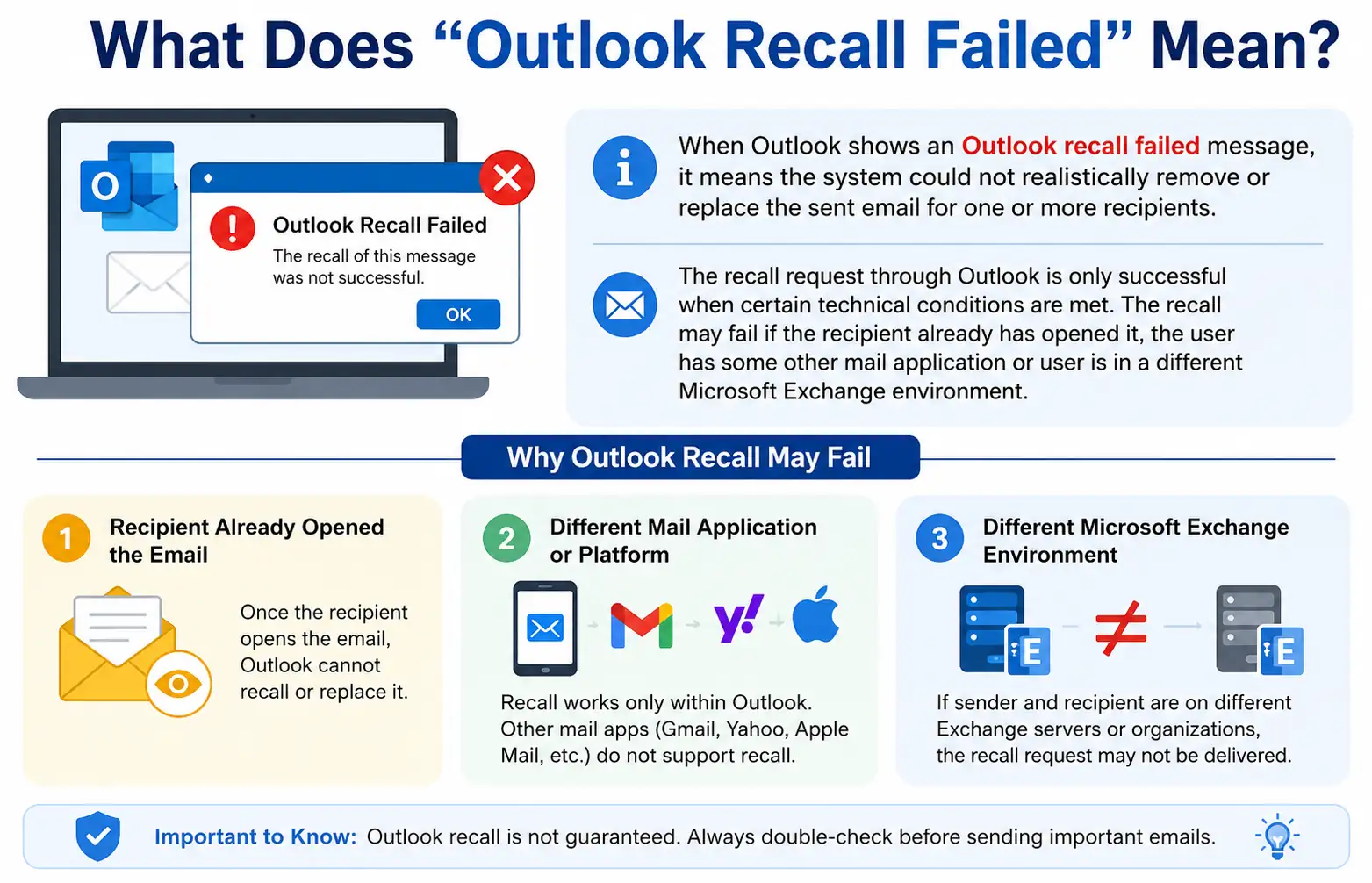
When Outlook shows an Outlook recall failed message, it means the system could not realistically remove or replace the sent email for one or more recipients.
When it comes to the recall request through Outlook it is only successful when certain conditions are met from technical side. The recall may fail if the recipient already has opened it, the user has some other mail application or user is in a different Microsoft Exchange environment.
How Outlook Email Recall Works
Outlook’s recall feature sends a special recall request to the recipient’s mailbox. If you are unfamiliar with the process, our detailed guide on how to recall an email in Outlook explains every step in greater detail.
Typical Recall Workflow
| Step | Action |
| 1 | User sends email |
| 2 | User opens Sent Items |
| 3 | Selects Recall This Message |
| 4 | Outlook sends recall request |
| 5 | Recipient mailbox processes request |
| 6 | Recall succeeds or fails |
Outlook Recall Workflow
- Open Sent Items.
- Double-click the message.
- Select File → Info.
- Click “Resend or Recall”.
- Choose “Recall This Message”.
- Select deletion or replacement option.
- Submit recall request.
- Await Outlook processing.
Users working with the desktop application can follow this dedicated tutorial to recall an email in Outlook Desktop correctly.
Outlook Recall Requirements
Many users are unaware of the strict Outlook recall requirements.
For a successful recall:
| Requirement | Must Be Met? |
| Sender uses Outlook desktop app | Yes |
| Recipient uses Outlook | Yes |
| Both accounts on Microsoft Exchange | Yes |
| Same organisation environment | Usually |
| Email unopened | Yes |
| Recall request reaches mailbox first | Yes |
If any of these conditions are missing, recall success rates drop significantly.
Why Email Recall Not Working: Common Causes
Recipient Already Opened the Email
The most common reason for recall failure is that the recipient has already opened the message.
Once viewed, Outlook generally cannot retract the content.
Different Email Systems
Many recipients use:
- Gmail
- Yahoo Mail
- Apple Mail
- Proton Mail
These services do not support Outlook recall requests.
If you primarily use Outlook in a browser, understanding Outlook Web email recall options may help clarify feature differences and limitations.
Mobile Device Access
Recipients often read emails through:
- Smartphones
- Tablets
- Third-party email apps
These applications may process the original email before the recall request arrives.
Different Exchange Servers
Even within Microsoft environments, separate Exchange infrastructures may prevent recall functionality.
Inbox Rules
Automatic mailbox rules can move emails into folders before the recall request arrives, causing the process to fail.
Recall Email Limitations Outlook Users Should Understand
The feature can be useful, but there are important recall email limitations Outlook users often overlook.
| Limitation | Impact |
| Works only in specific environments | High |
| Not supported across most external domains | High |
| Cannot recall opened emails | High |
| Mobile access reduces success rates | Medium |
| Processing delays possible | Medium |
Because of these restrictions, recall should not be viewed as a guaranteed safety mechanism. For the latest technical requirements and limitations, consult Microsoft’s official Outlook recall documentation.
Failed Recalled Message Outlook: What Happens Next?
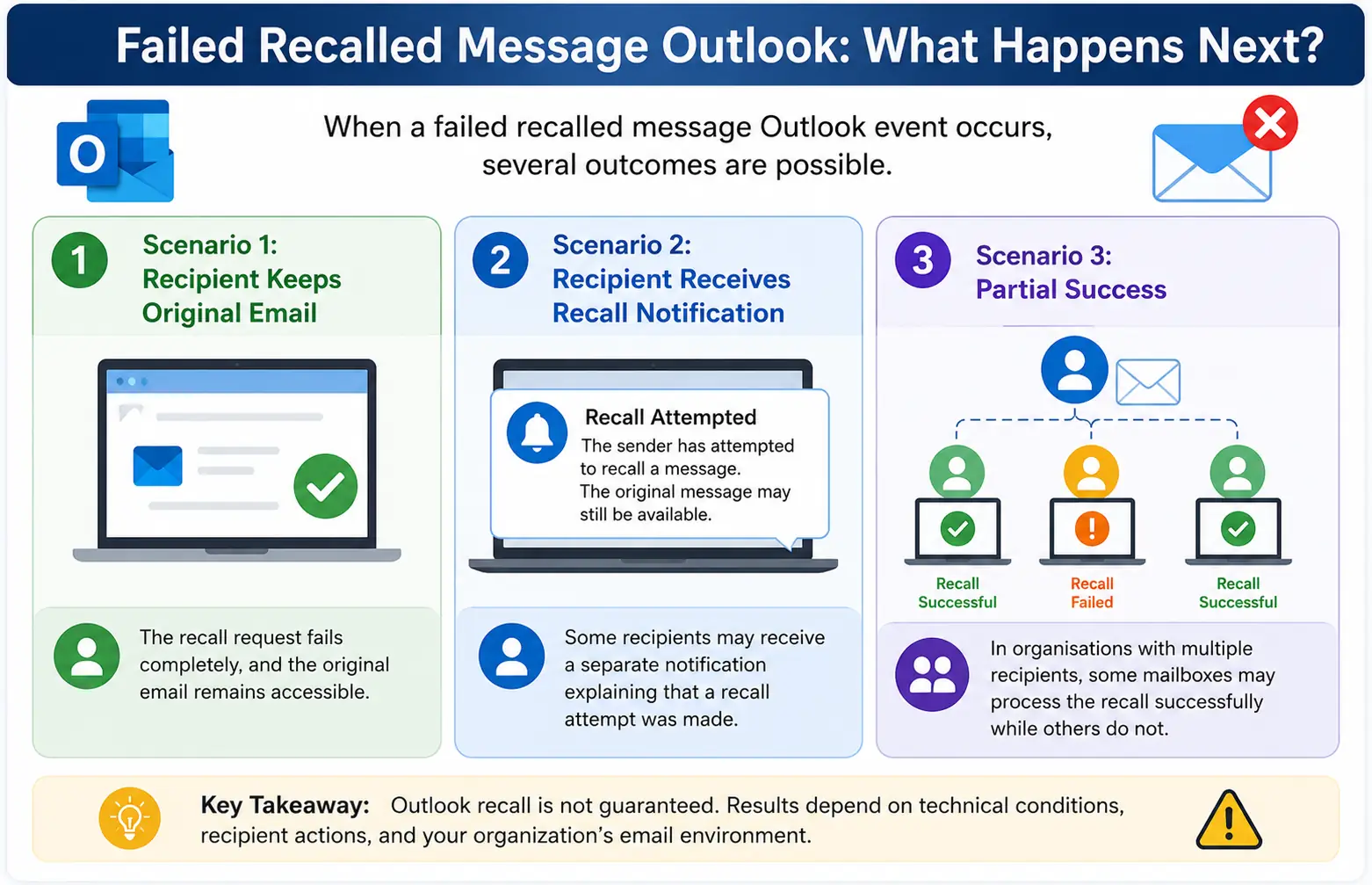
When a failed recalled message Outlook event occurs, several outcomes are possible.
Scenario 1: Recipient Keeps Original Email
The recall request fails completely, and the original email remains accessible.
Scenario 2: Recipient Receives Recall Notification
Some recipients may receive a separate notification explaining that a recall attempt was made.
Scenario 3: Partial Success
In organisations with multiple recipients, some mailboxes may process the recall successfully while others do not.
Alternatives to Outlook Recall
Because recall success is unpredictable, many organisations rely on alternative approaches.
Delay Send Feature
One of the most effective options is scheduling a delay before sending.
Benefits include:
- Time to review emails
- Prevents accidental sends
- No dependency on recipient settings
Email Review Policies
Businesses often implement:
- Mandatory review periods
- Approval workflows
- Sensitive-content verification
Follow-Up Correction Email
If an email contains incorrect information, a prompt correction email is usually more effective than relying on recall.
What Outlook Recall Can and Cannot Do
Many users overestimate the capabilities of Outlook recall.
What Outlook Recall Can Do
- Attempt message removal
- Replace an existing message
- Work within supported Exchange environments
- Correct internal email mistakes
What Outlook Recall Cannot Guarantee
- Retrieval from all recipients
- Recall across Gmail or Yahoo
- Removal after message opening
- Universal success
Understanding these limitations helps users make informed decisions.
Outlook Recall vs Delay Delivery
| Feature | Outlook Recall | Delay Delivery |
| After sending | Yes | No |
| Prevent mistakes | Limited | Excellent |
| External recipients | Usually fails | Works universally |
| Reliability | Moderate | High |
| Business use | Situational | Recommended |
For most users, delay delivery offers more reliable protection against email mistakes.
Who Should Use Outlook Recall?
Suitable Users
- Corporate Microsoft Exchange users
- Internal business communication teams
- Organisations using Outlook desktop applications
Less Suitable Users
- Gmail users
- Mixed-platform organisations
- External marketing campaigns
- Customer communication teams
Best Practices for Avoiding Recall Problems
- Review recipients carefully.
- Double-check attachments.
- Verify subject lines.
- Enable delayed sending.
- Use draft reviews for important emails.
- Avoid sending sensitive information hastily.
These habits reduce the need for recalls altogether.
Frequently Asked Questions
What does Outlook recall failed mean?
Outlook recall failed means Outlook could not successfully retrieve or replace the email after it was sent because one or more recall conditions were not satisfied.
Why is email recall not working in Outlook?
Common reasons include recipients opening the email, using non-Outlook services, mobile device access, or incompatible Exchange configurations.
Can I recall an email sent to Gmail?
No. Outlook recall generally does not work for Gmail recipients because Gmail does not support Microsoft’s recall process.
What are the Outlook recall requirements?
Both sender and recipient typically need Outlook accounts connected to compatible Microsoft Exchange environments, and the email should remain unopened.
Is Outlook recall reliable?
It can work in specific organisational setups, but it should not be considered a guaranteed solution.
Conclusion
When Outlook recall fails, the issue is usually linked to Outlook’s strict technical requirements and the practical realities of modern email usage. Understanding why email recall is not working occurs, recognising recall email limitations Outlook imposes, and following proper email review practices can help reduce mistakes before they happen.
For most users and organisations, prevention methods such as delayed delivery and careful message review offer a far more dependable solution than relying solely on Outlook’s recall feature.