

Jun 15, 2026
Sep 15, 2026
If you stumbled upon this article searching for how to recall email Outlook Mac, then probably you have just shot off an email and would like to take it back as soon as possible. Maybe it was the wrong attachment, wrong person, or you noticed a mistake in the email after 5 seconds of sending it. Happily, there is now an Outlook Mac undo sent feature, to prevent problems like this. The catch is, distribution an email recall on a Mac doesn’t work as users might have first assumed. In this article you will discover how to recall email Outlook Mac actually deals with it, the conditions where it can and can’t effort, and what the best alternative options are available for you in 2026.
Table of Contents
This Article Is Part of the Marketing Resource Hub
Explore more digital marketing guides, tutorials, strategies, AI marketing insights, content marketing, social media marketing, and online advertising resources inside our
Digital Marketing Resource Hub .
Can You Recall an Email in Outlook for Mac?
The answer is: it depends.
Unlike Outlook for Windows in Microsoft Exchange environments, Outlook for Mac does not fully support traditional email recall in every scenario.
Instead, Microsoft focuses on features such as:
- Undo Send
- Delay Delivery
- Scheduled Sending
- Message Replacement Workflows
These methods are often more reliable than traditional recall requests.
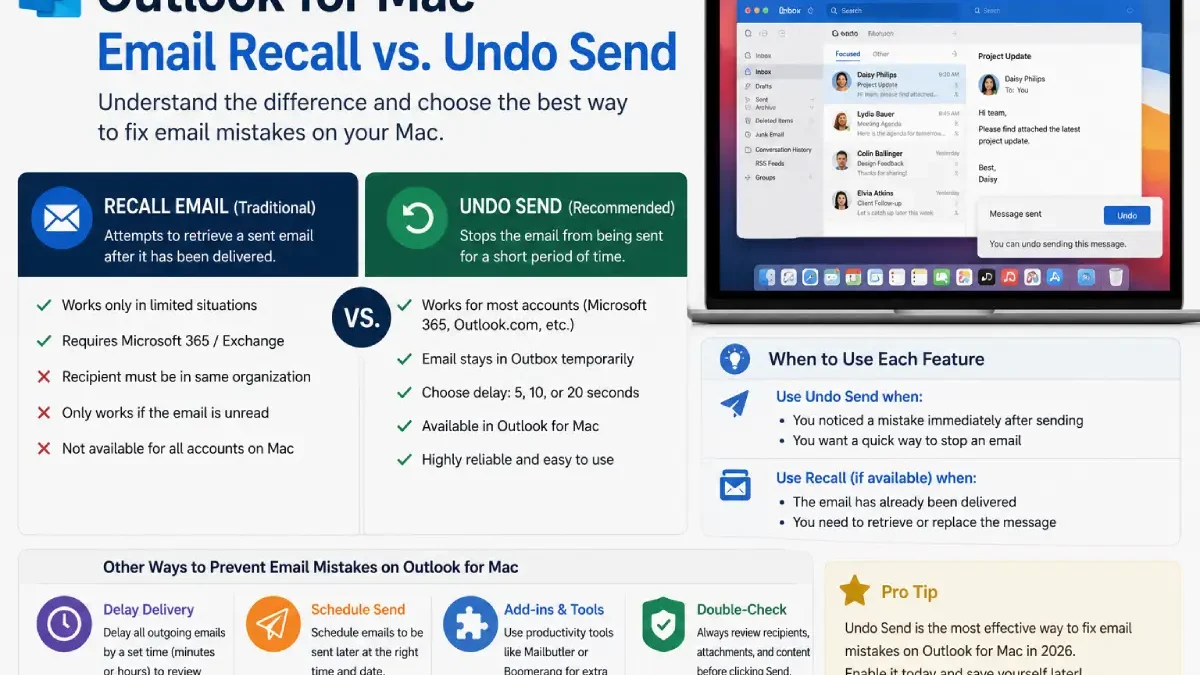
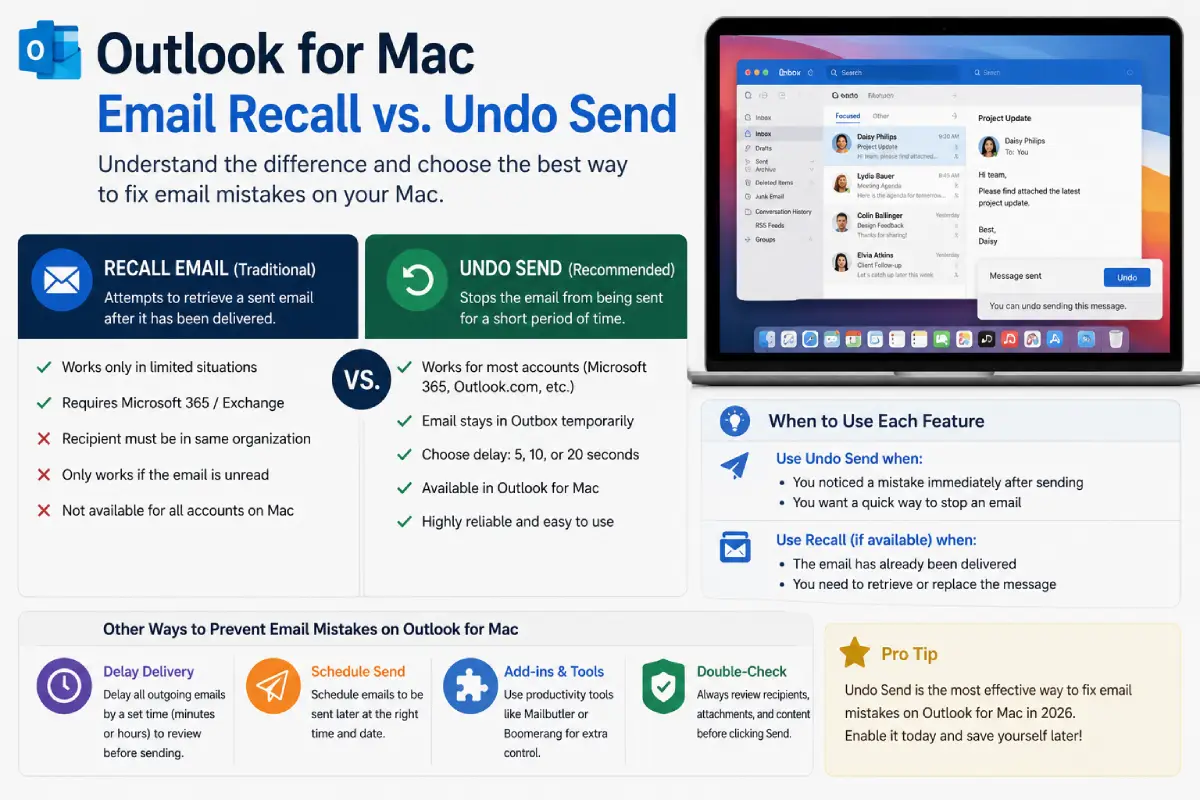
Outlook Mac Recall vs Undo Send
Many users confuse email recall with Undo Send.
Key Difference
| Feature | Recall Email | Undo Send |
| Works After Delivery | Sometimes | No |
| Works Before Delivery | No | Yes |
| Requires Exchange Environment | Usually | No |
| Available on Outlook Mac | Limited | Yes |
| Reliability | Low | High |
What This Means
Undo Send prevents an email from leaving your mailbox for a short period, while recall attempts to retrieve an email after delivery.
Most experts recommend Undo Send because it is significantly more reliable.
How to Enable Undo Send in Outlook for Mac
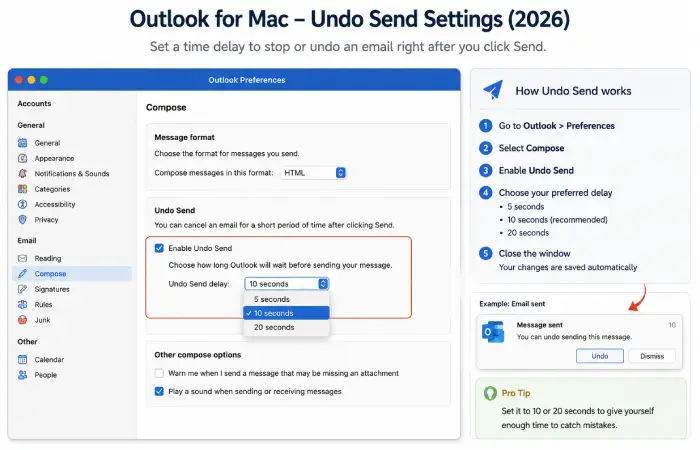
Setting up Undo Send takes only a few minutes.
Step 1
Open Outlook on your Mac.
Step 2
Select:
Outlook → Settings → Compose
Step 3
Locate the Undo Send option.
Step 4
Choose your preferred delay:
- 5 Seconds
- 10 Seconds
- 20 Seconds
Step 5
Save your settings.
Now every email will remain pending briefly before being delivered.
Comparison Table: Best Email Recall Alternatives for Outlook Mac (2026)
| Solution | Reliability | Ease of Use | Best For |
| Undo Send | 95% | Easy | Most Users |
| Delay Delivery | 92% | Easy | Professionals |
| Scheduled Send | 90% | Easy | Teams |
| Mailbutler | 88% | Moderate | Productivity Users |
| Boomerang | 87% | Moderate | Sales Teams |
| Correction Email | 100% | Easy | Already Delivered Emails |
How to Use Scheduled Send on Outlook Mac
Scheduled Send is another effective alternative.
Benefits
- Review messages later
- Prevent rushed communication
- Better timing for recipients
- Reduces email mistakes
Setup Process
- Compose your email.
- Click the dropdown beside Send.
- Select Schedule Send.
- Choose date and time.
- Confirm scheduling.
Many business users rely on this feature instead of email recall.
Best Outlook Productivity Tools for Mac Users

Several tools provide additional protection against email mistakes.
Mailbutler
Best for:
- Send Later
- Email Tracking
- Templates
- Productivity Automation
Boomerang
Best for:
- Follow-ups
- Scheduling
- Response Tracking
Superhuman
Best for:
- Power Users
- Undo Send
- Fast Email Processing
Outlook Mac Email Recall: Real-World Scenarios
Scenario 1: Wrong Attachment
Best Solution:
Use Undo Send immediately.
Scenario 2: Sent to Wrong Recipient
Best Solution:
Send a correction email and notify recipients quickly.
Scenario 3: Missing Information
Best Solution:
Follow up with an updated message.
Scenario 4: Sensitive Data Shared
Best Solution:
Contact your IT administrator immediately and review organizational security policies.
Troubleshooting Outlook Mac Recall Problems
I Can’t Find Recall Message
This is normal.
Many Outlook Mac users do not have access to traditional recall functionality because it depends on Microsoft Exchange infrastructure.
Undo Send Isn’t Showing
Update Outlook to the latest version.
Older releases may not support the feature.
Scheduled Send Failed
Ensure:
- Outlook remains connected
- Your account syncs properly
- Internet access is available
Email Already Delivered
Traditional recall may no longer work.
Send a correction email instead.
Outlook Mac Best Practices
To reduce email mistakes:
Use Undo Send
A 20-second delay catches many errors.
Review Recipients Carefully
Double-check names before sending.
Enable Delayed Delivery
Create a safety buffer for important emails.
Use Email Productivity Tools
Solutions like Mailbutler and Boomerang add additional safeguards.
Verify Attachments
Most email errors involve missing or incorrect files.
Outlook Mac Workflow Comparison
| Method | Error Prevention Score |
| Undo Send | 95 |
| Delay Delivery | 92 |
| Scheduled Send | 90 |
| Productivity Plugins | 87 |
| Traditional Recall | 45 |
This demonstrates why modern Outlook users increasingly rely on prevention rather than recall.
Conclusion
For most users, recall email Outlook Mac is no longer the best solution for correcting email mistakes.
Microsoft have brought in more reliable alternatives like Undo Send, Scheduled Send and Delay Delivery. They stop actions before they happen and are more user friendly.
In 2026, with Outlook for Mac, the safest method is to combine Undo Send with scheduled delivery and work products, and avoid the classic email recall altogether.